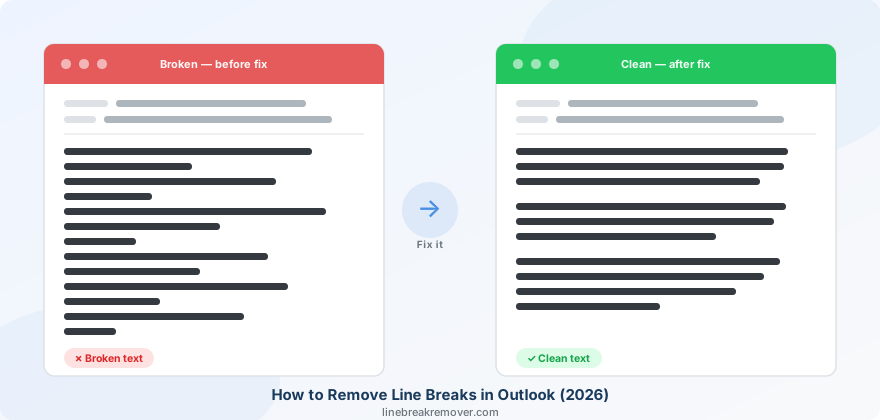
You paste text into an Outlook email and it arrives as a choppy, broken mess — every line separate, paragraphs split in half, your email signature collapsed into a single wall of text. Or the opposite: you carefully format a plain-text email and Outlook silently strips all your line breaks before the recipient ever sees it.
Both problems are extremely common, and both are fixable. This guide covers every scenario — classic Outlook desktop, the new Outlook for Windows, Outlook on the web, and mobile — so you can resolve line break issues once and get back to writing.
What you will learn
Why Outlook has two opposite line break problems · The hidden setting that causes most of them · 5 methods ranked by situation · Fixes for Outlook on the web and mobile · Prevention habits for pasting from PDFs, ChatGPT, and websites
Why Outlook has line break problems
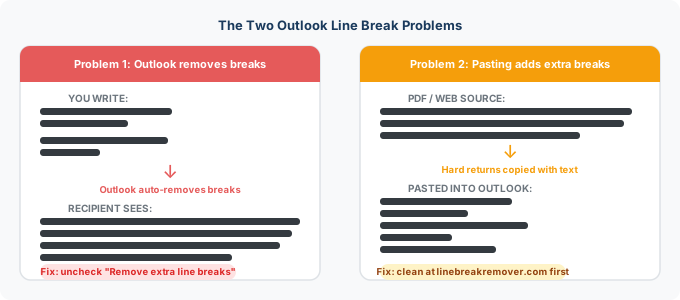
Outlook handles text formatting differently depending on whether a message is in HTML, Rich Text (RTF), or Plain Text format. Most problems fall into one of two categories:
Outlook removes line breaks. A hidden setting called "Remove extra line breaks in plain text messages" is enabled by default. It strips what Outlook considers redundant line breaks in plain-text emails, which can collapse structured content — like a multi-line address or a formatted signature — into an unreadable block of text.
Outlook adds unwanted line breaks. Text copied from PDFs, websites, AI tools like ChatGPT, or other apps often contains hard returns at the end of every visual line. When pasted into Outlook, each of those breaks becomes a new line in the email — turning a clean paragraph into dozens of short, choppy lines.
The key distinction
In Outlook, Enter creates a paragraph break (with spacing above and below). Shift + Enter creates a soft line break with no added spacing. Using the wrong one when typing is a common source of layout problems.
Where the extra line breaks come from
Before choosing a fix, it helps to know what you are pasting from — because each source embeds line breaks differently.
PDFs
PDFs store text with an explicit line break character at the end of every printed line — not at the end of every sentence. When you copy a paragraph from a PDF, you copy all those mid-sentence breaks too. Outlook pastes them exactly as-is, splitting sentences across separate lines. Our guide on why PDFs create line breaks when copying explains the technical reason in full.
ChatGPT and AI tools
ChatGPT formats output using Markdown conventions — double line breaks between paragraphs and sometimes breaks within longer sentences. When you copy and paste that output into Outlook, those breaks produce extra blank lines and fragmented text. See our guide on fixing line breaks when copying from ChatGPT for more detail.
Websites and web articles
Web pages use HTML paragraph and line break tags that do not translate cleanly when copied. Depending on the site structure, pasting into Outlook can produce extra blank lines, text fragments, or inconsistent spacing between paragraphs.
Plain-text email format
Plain-text emails have no HTML formatting at all. Outlook's auto-remove setting specifically targets these — it strips what it considers "extra" line breaks, which can destroy carefully formatted plain-text content like signatures, address blocks, or structured lists.
Method 1: Turn off "Remove extra line breaks" (classic Outlook)
This is the root cause fix for the most common scenario: Outlook silently removing line breaks from plain-text emails. The change takes under a minute and applies permanently to your Outlook installation.
- Click the File tab in the Outlook ribbon, then select Options.
- In the Options dialog, click Mail in the left sidebar.
- Scroll to the Message format section.
- Find the checkbox labelled "Remove extra line breaks in plain text messages" and uncheck it.
- Click OK.
Best for
Anyone whose plain-text emails or signatures lose their line breaks in Outlook. This is the permanent fix — do it once and the problem stops.
Important
This setting controls what your copy of Outlook does when displaying plain-text messages. If a recipient's Outlook still has this enabled, they may see your plain-text email without line breaks on their end. For reliable formatting across all recipients, use HTML format (see Method 5).
Method 2: Restore line breaks from the notification bar
When Outlook removes line breaks from a received plain-text message, it sometimes shows a yellow notification bar at the top of the email body reading something like "Extra line breaks in this message were removed."
If you see this bar, click "Restore line breaks" to instantly restore the original formatting of that message. This is a one-time fix for a single email only — to stop it happening permanently, use Method 1.
Method 3: Use Find & Replace to fix line breaks in HTML emails
If you are working in HTML format (the Outlook default) and your pasted text has too many line breaks, Find & Replace lets you clean them up without leaving Outlook.
- In an open email, place your cursor in the message body and press Ctrl + H to open Find & Replace.
- Click inside the Find What field. Click More > Special and choose Paragraph Mark (
^p). - Click inside Replace With. Click Special and choose Manual Line Break (
^l). - Click Replace All.
This converts every paragraph break (which adds spacing) into a soft line break (no extra spacing), removing the double-spaced appearance throughout the email.
Shift+Enter tip
When typing in Outlook, use Shift + Enter instead of Enter to insert a soft line break with no paragraph spacing. Use regular Enter only when you want a visible gap between paragraphs.
Method 4: Clean text before pasting (works everywhere)
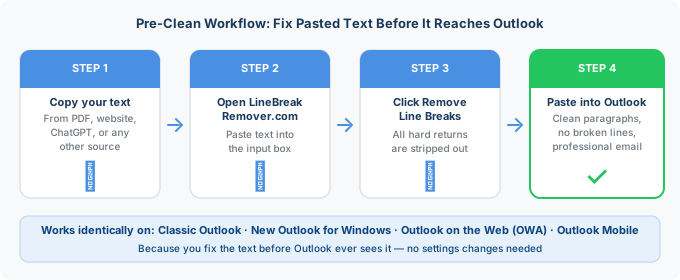
This is the most practical fix when your line break problems come from pasted content — text copied from a PDF, a website, ChatGPT, or any other source formatted for a narrow column or a different context.
- Copy your text from the source as normal.
- Open linebreakremover.com in your browser.
- Paste the text into the input box and click Remove Line Breaks.
- Copy the clean output and paste it into Outlook.
The tool joins all broken lines into clean, flowing paragraphs before Outlook ever sees them — so there are no stray line breaks left to cause problems.
Best for
Anyone regularly pasting from PDFs, ChatGPT, or web articles into Outlook emails. This method works identically in classic Outlook, new Outlook for Windows, Outlook on the web, and the Outlook mobile app — because you fix the text before it reaches Outlook.
Choosing the right setting in LineBreakRemover.com
| Source | Recommended setting | Result in Outlook |
|---|---|---|
| PDF body text | Replace with space | Sentences join correctly, one clean paragraph |
| ChatGPT output | Remove line breaks, preserve paragraphs | One paragraph per section, clean spacing |
| Web article body | Replace with space | Clean flowing text, no broken lines |
| Bullet lists | Keep line breaks | Preserves list structure intentionally |
Method 5: Switch your default email format to HTML
Most line break problems — especially the auto-remove issue — only affect plain-text emails. Switching your default compose format to HTML means Outlook will preserve your formatting reliably for all new emails.
- Go to File → Options → Mail.
- Under Compose messages, find the dropdown labelled "Compose messages in this format."
- Change it from Plain Text to HTML.
- Click OK.
Best for
Anyone who composes in plain text by default and frequently encounters the auto-remove line break problem. HTML format preserves line breaks reliably and is already the default for most Outlook users.
Outlook on the web and new Outlook for Windows
Outlook on the web (outlook.office.com) and the new Outlook for Windows do not have the classic plain-text line break settings panel. For these versions:
- Pre-clean before pasting using Method 4 — this is the most reliable fix and works regardless of Outlook version.
- Paste as plain text: Use Ctrl + Shift + V to strip incoming rich formatting when pasting. This removes bold, colour, and font changes, but line break characters still appear as line breaks — so pre-cleaning first gives better results.
- Shift+Enter still works: In both OWA and the new Outlook, pressing Shift + Enter inserts a soft line break without paragraph spacing, exactly as in classic Outlook.
Outlook mobile (iOS and Android)
The Outlook mobile app has no formatting settings for line breaks. If you are pasting text with broken lines into a mobile email, the cleanest workflow is:
- On your phone's browser, open linebreakremover.com.
- Paste your text, tap Remove Line Breaks, and copy the result.
- Switch to the Outlook app and paste the clean text into your email.
LineBreakRemover.com is fully mobile-friendly and works in any browser on iOS or Android.
Which method should you use?
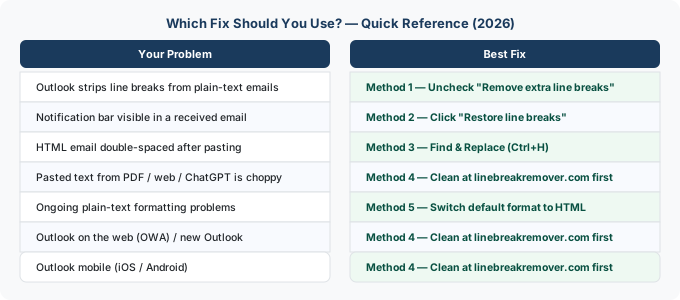
| Your problem | Best fix |
|---|---|
| Outlook strips line breaks from plain-text emails | Method 1 — uncheck "Remove extra line breaks" |
| One email has broken formatting, notification bar visible | Method 2 — click "Restore line breaks" |
| HTML email has too many line breaks after pasting | Method 3 — Find & Replace |
| Pasted text from PDF, web, or ChatGPT has broken lines | Method 4 — clean with LineBreakRemover.com first |
| Ongoing plain-text formatting problems | Method 5 — switch default format to HTML |
| Outlook on the web or new Outlook for Windows | Method 4 — clean with LineBreakRemover.com first |
| Outlook mobile app | Method 4 — clean with LineBreakRemover.com first |
Frequently asked questions
Why does Outlook keep removing line breaks from my emails?
Outlook has a built-in feature called "Remove extra line breaks in plain text messages" that is enabled by default. It strips line breaks it considers redundant in plain-text format emails. Disable it permanently by going to File → Options → Mail → Message format and unchecking that option.
Why does pasting text into Outlook add extra line breaks?
Text copied from PDFs, websites, or AI tools like ChatGPT often contains hard line breaks at the end of every visual line. When pasted into Outlook, each break creates a new line. Clean the text first at linebreakremover.com to remove all embedded hard returns before pasting.
What is the difference between Enter and Shift+Enter in Outlook?
Pressing Enter in Outlook creates a paragraph break, which adds spacing above and below. Pressing Shift + Enter creates a soft line break with no added spacing — useful for keeping address lines, signature blocks, or list items tightly grouped without extra gaps.
How do I fix line breaks in Outlook on the web?
Outlook on the web does not have the plain-text line break setting. The most reliable fix is to clean your text at linebreakremover.com before pasting into OWA. You can also use Ctrl + Shift + V to paste as plain text and strip incoming rich formatting.
Why does my Outlook email signature lose its line breaks?
Plain-text signatures are most affected by Outlook's auto-remove setting. Disable it permanently under File → Options → Mail (Method 1 above). Alternatively, create your signature in HTML format — HTML signatures preserve line breaks reliably across all Outlook versions and for all recipients.
Does this problem happen in the new Outlook for Windows?
The new Outlook for Windows behaves more like Outlook on the web and does not have the classic plain-text line break setting. For pasted content with broken lines, pre-cleaning with linebreakremover.com is the most reliable fix across all Outlook versions.
Conclusion: the habit that prevents Outlook line break problems
Outlook's line break behaviour — whether stripping them from plain-text emails or preserving every hard return from pasted content — comes down to a few fixable settings and one powerful habit. For the setting issue, a one-time change under File → Options → Mail solves it permanently. For pasted content, making LineBreakRemover.com your mandatory middle step between copying and pasting eliminates the problem entirely.
Build that ten-second pre-clean habit and Outlook's line break frustrations disappear for good. For related guides, see how to remove line breaks in Microsoft Word and remove line breaks in Google Docs.