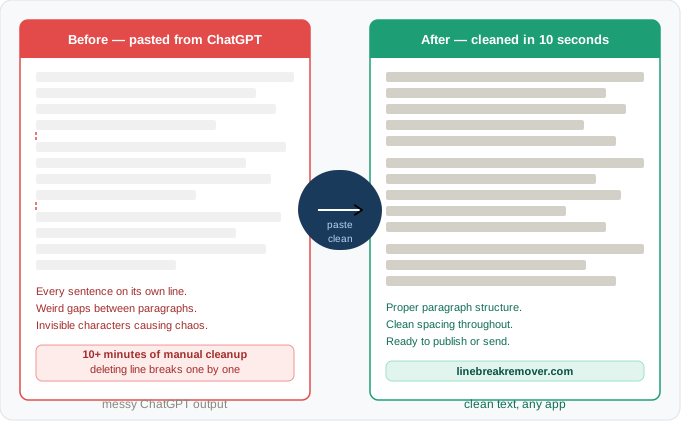
You asked ChatGPT to write something. It gave you a great response. You copied it, pasted it into your document — and now it looks like a disaster.
Every sentence is on its own line. Paragraphs that looked clean in ChatGPT are now broken into fragments. You spend the next ten minutes manually deleting line breaks one by one.
Sound familiar? This is one of the most common frustrations for anyone using ChatGPT in 2025 — writers, bloggers, marketers, students, and professionals all hit the same wall every single day. The good news: there is a simple explanation and fast fixes for every app you use.
What you will learn
Why ChatGPT creates line break problems · 5 fast methods to fix it · App-specific solutions for Word, Docs, Notion, WordPress & email · How to stop the problem before it starts
Why does copying from ChatGPT create line break problems?
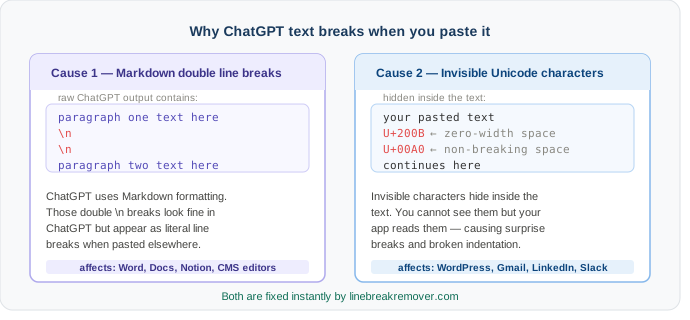
Before we fix it, it helps to understand what is actually happening. There are two separate causes, and knowing which one you are dealing with points you to the right fix.
Cause 1: ChatGPT uses Markdown formatting
ChatGPT formats its responses using Markdown — a plain text system that uses double line breaks between paragraphs. This looks clean inside the ChatGPT interface because the browser renders Markdown automatically.
When you copy the text and paste it somewhere that does not render Markdown — like a plain text field, an email window, or certain CMS editors — those double line breaks appear as literal line break characters. The result is a wall of fragmented lines with gaps everywhere.
Cause 2: Hidden invisible characters
ChatGPT output can also contain invisible Unicode characters you cannot see but your destination app can. These include zero-width spaces (U+200B), non-breaking spaces (U+00A0), and soft hyphens. When pasted into Word, Google Docs, or WordPress, these trigger unexpected spacing behaviour, broken indentation, and line breaks appearing where you did not put any.
The key insight
The mess is not visible inside ChatGPT. It only appears after you paste. That means the fix happens before or immediately after pasting — not inside ChatGPT itself.
5 methods to fix ChatGPT line breaks
Different situations need different fixes. Here are five methods ranked from fastest to most thorough.
Method 1: Use a line break remover tool (fastest — 10 seconds)
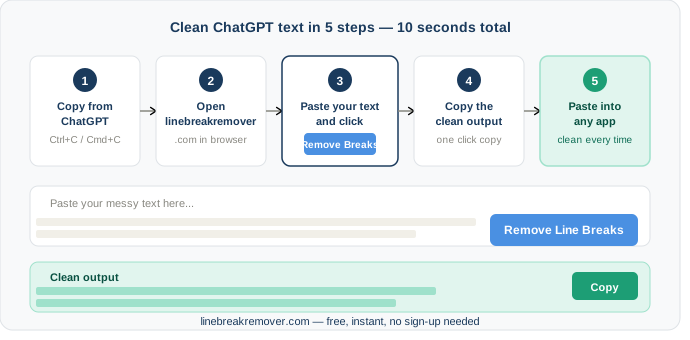
This is the fastest fix for any destination app. Copy your ChatGPT text, paste it into LineBreakRemover.com, click Remove Line Breaks, then copy the clean output and paste it wherever you need it.
- Copy your ChatGPT response as normal (Ctrl + C or Cmd + C)
- Go to linebreakremover.com
- Paste your text into the input box
- Click Remove Line Breaks
- Copy the clean output and paste into your document
Best for
Anyone who pastes ChatGPT text into multiple different apps and wants one universal fix that always works — Word, Google Docs, Notion, WordPress, email, Slack, LinkedIn.
Method 2: Paste as plain text first (prevents the problem)
Instead of fixing line breaks after pasting, this method prevents them from appearing in the first place. The plain text shortcut strips out all hidden formatting before it arrives in your document.
- Windows: Ctrl + Shift + V
- Mac: Cmd + Shift + V
- Microsoft Word specifically: Ctrl + Alt + V → choose Unformatted Text
The limitation: this removes all formatting including bold and italic. If you need to keep formatted output from ChatGPT, use Method 1 or Method 3 instead.
Best for
Quick one-off pastes where you do not need to preserve any bold or italic formatting from the ChatGPT response.
Method 3: Fix in Microsoft Word with Find & Replace
If you have already pasted messy ChatGPT text into Word, Find and Replace can clean it up in seconds. This three-step method removes unwanted line breaks while keeping intentional paragraph spacing intact. For a deeper walkthrough see our full guide on how to remove line breaks in Microsoft Word.
- Press Ctrl + H to open Find and Replace
- In Find what, type
^p^p— in Replace with, typeXXX— click Replace All - In Find what, type
^p— in Replace with, type a single space — click Replace All - In Find what, type
XXX— in Replace with, type^p^p— click Replace All
Best for
Word users who have already pasted a long ChatGPT response and need to clean it up without losing paragraph structure.
Method 4: Fix in Google Docs with Find & Replace
Google Docs supports regular expressions in Find and Replace, which gives you precise control. For more Google Docs formatting tips see our guide on removing line breaks in Google Docs.
- Press Ctrl + H (or Cmd + H on Mac)
- Click the three-dot menu and turn on Use regular expressions
- Find
\n\n+→ replace withXXX→ click Replace All - Find
\n→ replace with a space → click Replace All - Find
XXX→ replace with\n\n→ click Replace All
Best for
Google Docs users who regularly paste from ChatGPT and want a reliable in-document fix that keeps paragraph spacing clean.
Method 5: Ask ChatGPT to format the output differently
This method works upstream — before you even copy the text. Tell ChatGPT how you need the output formatted and it will adjust its response to reduce line break problems from the start.
- "Write this as plain paragraphs with no bullet points or markdown formatting."
- "Write this without using any bold, headings, or special formatting — just plain text."
- "Format this for pasting into Microsoft Word — single line breaks between paragraphs only."
Best for
Users who generate long documents from ChatGPT regularly and want to reduce cleanup time from the very first step.
App-specific quick reference
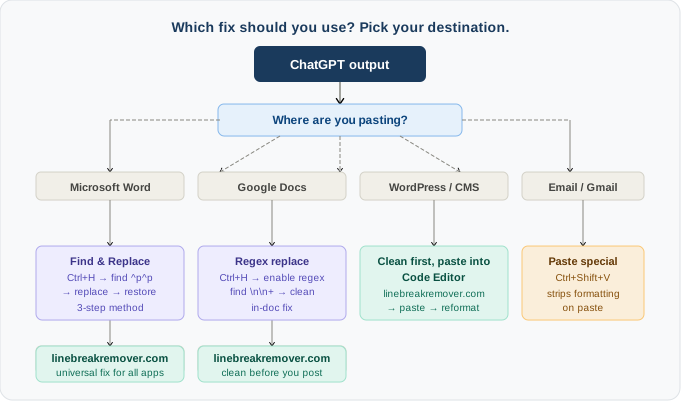
Different apps have different quirks. Here is what works best for each.
| App | Fastest fix | Notes |
|---|---|---|
| Microsoft Word | Method 3 — Find & Replace ^p |
Three-step method keeps paragraph structure intact |
| Google Docs | Method 4 — Regex Find & Replace | Enable "Use regular expressions" first |
| Notion | Method 1 — LineBreakRemover.com | Clean before pasting into Notion's block editor |
| WordPress | Method 1 then paste into Code Editor | Paste into Code/Text mode, then switch to Visual |
| Gmail / Outlook | Method 2 — Paste as plain text | Ctrl+Shift+V strips most ChatGPT formatting |
| Slack | Method 1 — LineBreakRemover.com | Slack's mrkdwn ignores standard markdown anyway |
| Method 1 then paste | LinkedIn editor is sensitive to invisible characters | |
| Any app | Method 1 — universal | LineBreakRemover.com works for every destination |
Special case: pasting ChatGPT text into WordPress
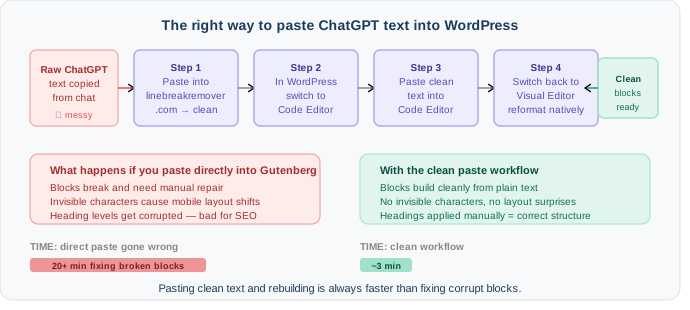
WordPress deserves its own section because it is the most sensitive destination for ChatGPT text. The Gutenberg block editor parses pasted content aggressively and invisible Unicode characters can break block structure, cause mobile layout shifts, and create SEO issues from corrupted heading levels.
The recommended WordPress workflow
- Copy your ChatGPT response
- Paste it into linebreakremover.com and click Remove Line Breaks
- Copy the clean output
- In WordPress, switch to Code Editor mode (not Visual/Gutenberg)
- Paste the clean text there
- Switch back to Visual Editor and apply headings, bullets, and formatting manually
This might seem like extra steps but it is faster than fixing broken Gutenberg blocks after the fact. Pasting clean text and rebuilding formatting natively takes about three minutes. Fixing corrupted blocks can take twenty.
How to stop this problem before it starts
If you use ChatGPT every day, here are three prevention habits that reduce the problem at the source.
1. Add a formatting instruction to your prompts
End your ChatGPT prompts with a formatting instruction. For example: "Write this as plain paragraphs. No bullet points, no bold text, no markdown formatting." ChatGPT will adjust its output style accordingly, giving you cleaner text to work with from the start.
2. Build a plain-paste habit
Train yourself to always paste using Ctrl+Shift+V (or Cmd+Shift+V on Mac) as your default. This one habit eliminates the majority of ChatGPT formatting problems before they appear in your document.
3. Use LineBreakRemover.com as your clipboard middleman
For anything important — blog posts, emails, reports — make linebreakremover.com your default intermediate step. Copy from ChatGPT, paste into the tool, clean it, then paste into your destination. This ten-second habit means you never have to manually delete a line break again.
Frequently asked questions
Why does ChatGPT text look fine in the chat but broken when I paste it?
The ChatGPT interface renders Markdown automatically so double line breaks and formatting symbols are invisible inside the chat. When you copy the raw text those characters come with it. The destination app then displays them literally rather than rendering them, which is what creates the mess.
Does this problem happen with Claude and Gemini too?
Yes. All major AI tools — ChatGPT, Claude, Gemini, Copilot — produce similar formatting issues when copied and pasted. The specific characters vary slightly between models but the problem and the fix are the same. LineBreakRemover.com handles text from any AI source.
Will removing line breaks delete my paragraph spacing?
Only if you remove all line breaks including the intentional ones between paragraphs. LineBreakRemover.com gives you the option to remove only single line breaks while preserving the double breaks that separate paragraphs — which is the setting most people need.
Is it safe to paste my ChatGPT text into an online tool?
For non-sensitive content, yes. LineBreakRemover.com processes your text entirely in the browser — nothing is sent to a server or stored. For confidential content such as legal documents or private client information, use Method 2 (paste as plain text) or Method 3/4 (Find & Replace in Word or Google Docs), which keep your text on your own device.
Why does the problem seem worse on iPhone than on desktop?
iOS simplifies rich text formatting aggressively when copying, which can worsen line break problems. For iPhone users, using LineBreakRemover.com in your mobile browser is the most reliable fix.
What if line breaks still appear after using Find & Replace?
Your document likely contains both paragraph breaks (^p) and manual line breaks (^l) mixed together. Run Find & Replace twice — once for ^p and once for ^l (that is a lowercase L, not the number 1).
Conclusion: stop fixing line breaks manually
Messy line breaks from ChatGPT are not a sign that something is broken — they are a predictable result of how AI tools format their output. Once you understand the pattern, fixing it takes seconds, not minutes.
For most people, the fastest long-term habit is this: copy from ChatGPT, run it through linebreakremover.com, paste clean text wherever you need it. That ten-second step saves hours of manual cleanup over the course of a month.
For Word and Google Docs users who prefer to stay inside their document, the Find and Replace methods in this guide give you complete control over exactly what gets removed and what stays.